
After completing Thing 1 you will have...
Created a Google ID and your own iGoogle start page.
What is a Google ID?
Google ID helps you to personalize your Google experience by enabling you to customize pages and obtain more relevant search results. Once you have created your ID you will be able to use other Google applications such as iGoogle, Blogger and Google Docs (more on these later in the program).
What is iGoogle & is it relevant to libraries?
iGoogle is a personal web portal created by Google for you to add and organize your favourite web pages, RSS feeds, gadgets and social networking sites (including Twitter and YouTube).
Step-by-step instructions
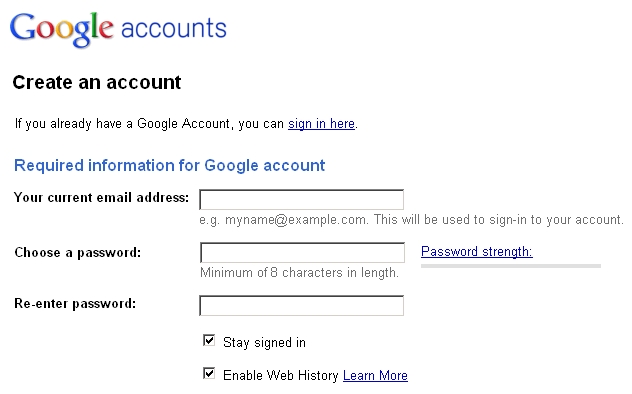
1. To create a Google ID, go to https://www.google.com/accounts/NewAccount
(if you already have a Google ID, please log in).
Or go to this link: https://accounts.google.com/ for an alternate way to create an account.
2. Complete the form and click on I accept when ready.
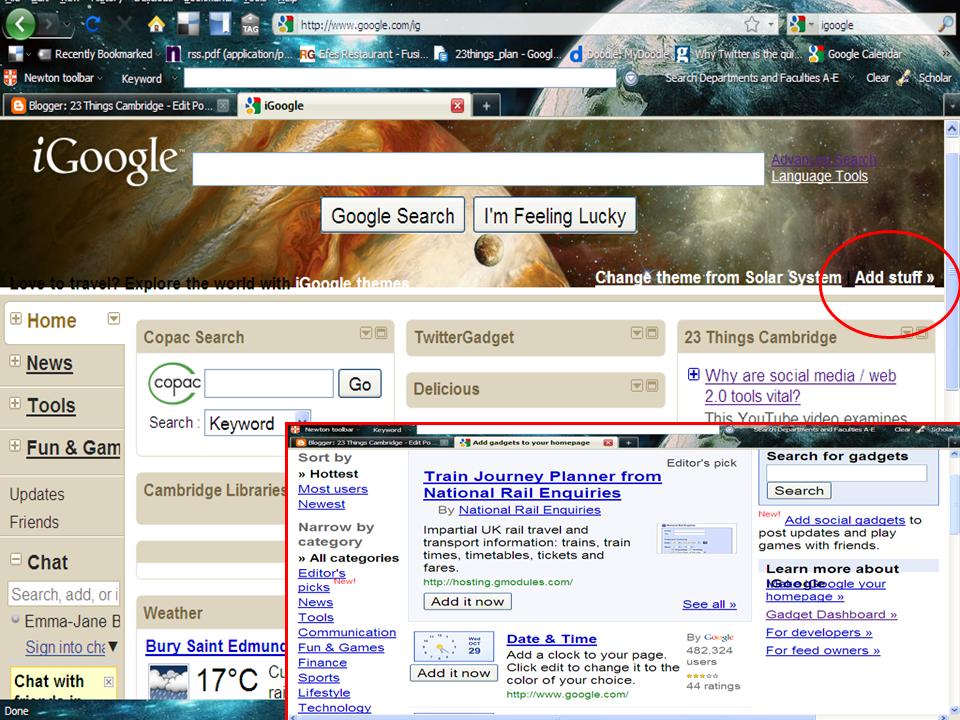
3. To create your iGoogle page, go to http://www.google.com/ig and log in with your Google ID.
4. Click on the Add Stuff link to explore the various gadgets you can install - have a look at All categories on the left of the screen for ideas, as well as the most popular gadgets and various themes, or use the search box. ** You will be learning more about gadgets (widgets) later in the program.
 You can also organize your gadgets with tabs which can help you navigate quickly to your content, as well as help your iGoogle pages load faster.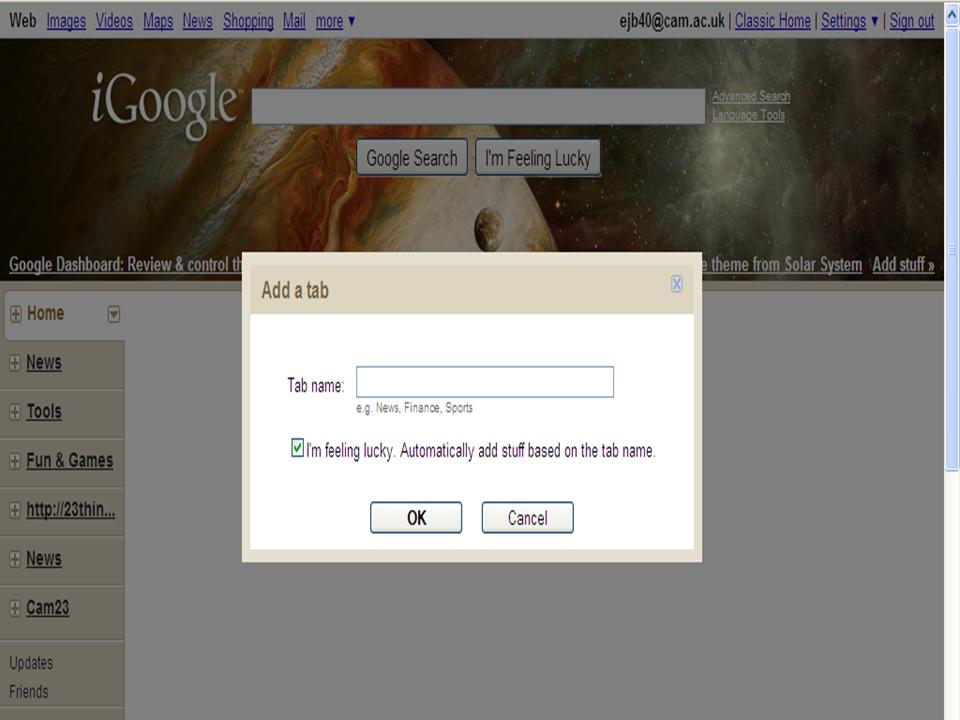
5. To add a tab, click on the tab Home on the left of the screen and select Add a tab.
6. Untick the I'm feeling lucky box.
7. Type in a name for your tab (e.g Library stuff) in the box.
8. Click on OK.
Feel free to add other tabs as and when you feel your page is getting too busy.
You may find this short YouTube animation a fun way of finding out how to set up and arrange your page:
Further reading
Read this post about Start pages on the Library 2.0 blog: Start pages as Library Virtual Reference Tools
Optional extras
If you already use iGoogle, have a look at Netvibes or Pageflakes to see what they may offer you that's different.
